
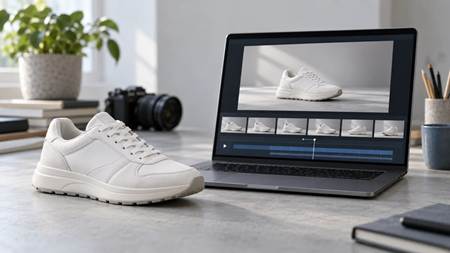
You have one good product photo, but now you also need a video for a blog post, product page or social campaign. Booking another shoot for a five-second clip may cost more time and money than the clip is worth.
You can use the Kling 4.0 AI Video Generator to animate the photo. Upload the image, describe one simple movement and create a short draft.
Getting movement is the easy part. Keeping the product accurate takes more care. A logo may change, an edge may bend or the colour may shift as the video plays. Starting with a simple shot makes these problems easier to spot and fix.
Pick a Clear Photo
Use a sharp image that shows the whole product. Make sure you have permission to use it, especially if it came from a photographer, supplier or customer.
A plain background helps, but good contrast matters more. A dark bottle against a dark wall will be harder to separate than the same bottle against a light surface.
Avoid photos where:
- The product is small or blurry.
- Props cover important details.
- Reflections hide the packaging.
- Several products overlap.
- The logo is already difficult to read.
For this example, imagine a white trainer photographed from the side against a light grey background.
Keep the First Video Simple
A five-second product video does not need a story. Give it one clear job: show the product with a little movement.
You might try:
- Moving the camera slowly towards the product
- Turning the product slightly
- Passing soft light across its surface
- Moving closer to one useful detail
Choose one idea. Asking for several camera moves, a new background and special effects in the same prompt gives the product more chances to change.
For the trainer, keep the shoe still. Move the camera closer and let soft light reveal the material.
Choose the Right Format and Length
Add the photo as a reference, then choose the duration and aspect ratio.
Match the frame to where the video will appear:
- 9:16 for Reels, TikTok and YouTube Shorts
- 1:1 for square social posts
- 16:9 for websites, YouTube and presentations
- 21:9 for a wide frame
Start with a five-second draft. Check the shot before making a longer or higher-resolution version.
Write a Direct Prompt
Describe the product, background, movement, camera and lighting. Then say which details must stay the same.
A simple structure is:
Product + setting + movement + camera + lighting + details to preserve
For the trainer, try:
Use the uploaded trainer photo as the main product reference. Keep its original shape, white colour, materials and logo unchanged. Place it on a clean studio platform with soft grey shadows. Move the camera slowly towards the shoe while gentle light passes across its side. Do not add people, captions, extra products or new design details.
Replace “trainer” with your product and adjust the background where needed.
A reference photo helps guide the result, but it cannot guarantee that every detail will remain exact. Always check the finished clip.
Watch the Whole Video
Do not judge the result from the first frame. Play the full clip, then pause it at several points.
Check for:
- Changes in shape or colour
- A bent, moving or missing logo
- Unstable labels and edges
- Objects you did not request
- Camera movement that feels too fast
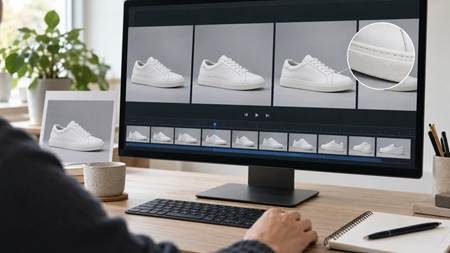
If one detail is wrong, change one part of the prompt. There is no need to rewrite everything.
If the trainer’s sole changes, add:
Keep the exact shape and proportions of the sole throughout the video.
If the movement is too fast, ask for:
A very slow, steady camera move towards the product.
Make one change, generate another short draft and compare the results.
Add Text Afterwards
Add prices, product details, discount codes and calls to action in a video editor. This gives you control over the wording, position and timing.
Do not use an AI-generated scene as proof of how a product performs. A visual effect cannot show that an item is waterproof, recyclable, safer or more effective. Only make claims you can support.
Before publishing, check whether the platform requires AI-generated or altered content to be labelled.
Reuse a Good Prompt
Save the prompt when the product looks accurate and the movement works. Change one element at a time to create a vertical version, a closer shot or a different background.
There is no need to build a full advert on the first try. One clear photo, one small movement and a careful review are enough to produce a useful short clip.
