


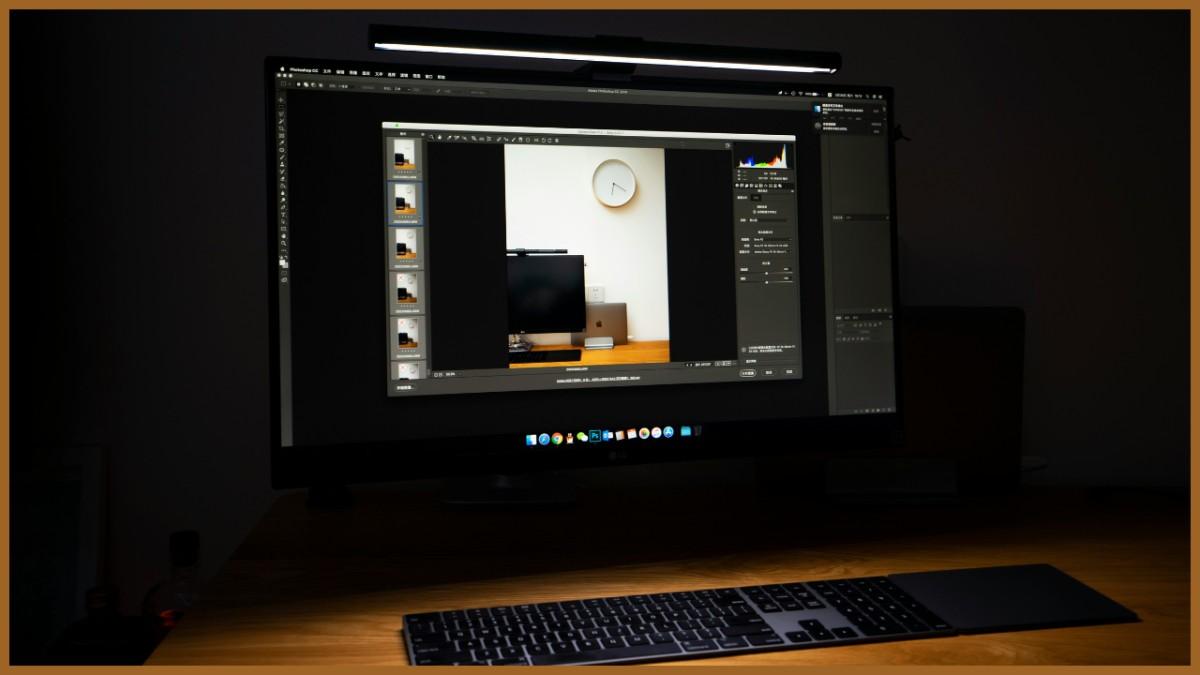
Imagine you have just wrapped a portrait session and your client is asking for selects by the morning. The files appear great, but the lighting changes from location to location, skin tones vary between frames, and a few hero shots require extra polish. At that moment, your choice of professional photo editing software can define the success of your business. The right tool will help you maintain cohesive looks under pressure: consistent color, detail in shadows, quick local adjustments, and exports that match the brief on your first try.
In this guide, we compare the best photo editing software for photographers through the real-world lens: speed, control, reliability, and results you can repeat across every job.
1. Luminar Neo
Luminar Neo is designed for fast, controlled improvements without turning the session into a science project. Its automatic tools ensure quick and flawless edits. For example, you can easily enhance an indoor shot with uneven and inconsistent illumination using an image brightener.
Luminar Neo is sold as a one-time purchase with three perpetual options: $119 (Desktop), $159 (Cross-device), and $179 (Max). It runs on Windows and macOS, and the Cross-device/Max plans add the mobile app for iOS, Android, and ChromeOS.
| Pros | Cons |
| Selective adjustments ensure your edits are believable. | AI light can look too strong if you don’t control its intensity. |
| Customizable presets help you build a consistent look across a set. | Some multi-image features/extensions are standalone-first, which can slow a plugin-only workflow in Photoshop or Lightroom. |
| AI-based image editing tools are best suited for quick rescues without requiring heavy manual retouching routines. | If you rely on ultra-manual, pixel-level micro-work, you may still pair it with a deep raster editor. |
2. Adobe Lightroom
What do photographers use to edit photos? They commonly rely on tools that can combine vast volumes of files into a single, cohesive story. If you have ever delivered a wedding where indoor tungsten, window light, and sunset all collide, Lightroom’s customizable presets and catalog management capabilities are exactly what you are looking for.
Adobe lists two core options for photographers on its official plan pages: Lightroom (1TB) at $11.99/month (annual, billed monthly) and Photography (1TB) at $19.99/month (annual, billed monthly). Both include Lightroom for desktop/mobile/web, plus Lightroom Classic; the Photography plan also adds Photoshop. Platforms include Windows and macOS on desktop, as well as iOS/Android and web for the cloud-based Lightroom experience.
| Pros | Cons |
| Consistent exporting and importing, along with a cross-device ecosystem, ensure fast deliveries within strict deadlines. | The program requires library discipline — messy imports become messy archives. |
| The program is great for culling and global tone/color work without breaking the original file. | A deep, pixel-level retouching usually needs a companion editor. |
| A non-destructive workflow for countless experiments without risking losing the originals. | A subscription model can be inconvenient for some users. |
3. ACDSee Photo Studio
ACDSee is a perfect option for photographers who wonder how to edit photos while keeping their archive tidy and their results predictable. This program is ideal for high-volume professional jobs. Use it for ingesting, organizing, culling, and developing RAW files efficiently.
ACDSee Photo Studio offers perpetual licenses at $79.95 USD (Professional 2026) or $109.95 USD (Ultimate 2026). Professional and Ultimate 2026 run on Windows (with system requirements listed as Windows 10/11), and ACDSee offers a separate macOS version.
| Pros | Cons |
| AI face detection and recognition help you assemble client galleries (or family groups) much quicker. | If your team mixes Mac and Windows, the split products can complicate standardizing. |
| The software supports video metadata and lets you search/filter video files alongside photos in the same library. | The interface depth may feel overwhelming at first if you are accustomed to minimalist tools. |
| It is a good fit for studios that prefer owning a license instead of committing to a monthly bill. | Some advanced, niche workflows may still benefit from pairing with a dedicated raster editor. |
4. Radiant Photo 2
Which AI image editor is best for photographers? The one that can analyze your image, suggest enhancements, and apply them cautiously without introducing unappealing overprocessed looks. Radiant Photo 2 does just that, making it an ideal choice for mixed indoor lighting, tired skin tones, and unwanted shadows in outdoor travel shots.
Radiant Photo 2 is sold as an application and plugin for $159 on the official product page. The application runs independently on Windows as well as macOS systems. It is also available as a plugin for Adobe Photoshop, Adobe Lightroom Classic, and Corel PaintShop Pro.
| Pros | Cons |
| Fast automatic enhancements that help a set look client-ready sooner. | Local retouching or complex composites require more advanced software. |
| Portrait-focused light adjustments for those who wonder how to enhance a photo without stealing attention from the subject. | If you already have a tight Lightroom/Photoshop routine, it can feel like an extra step. |
| Non-destructive edits for creative experiments and quick revision. | The software lacks fine manual control. |
Conclusion
The properly chosen post-processing software is fundamental for professional photographers who want to deliver good results within tight deadlines. Whether you prioritize speed, control, or a non-destructive workflow, options from this guide can hone your creative workflow and ultimately elevate your photography business.
