


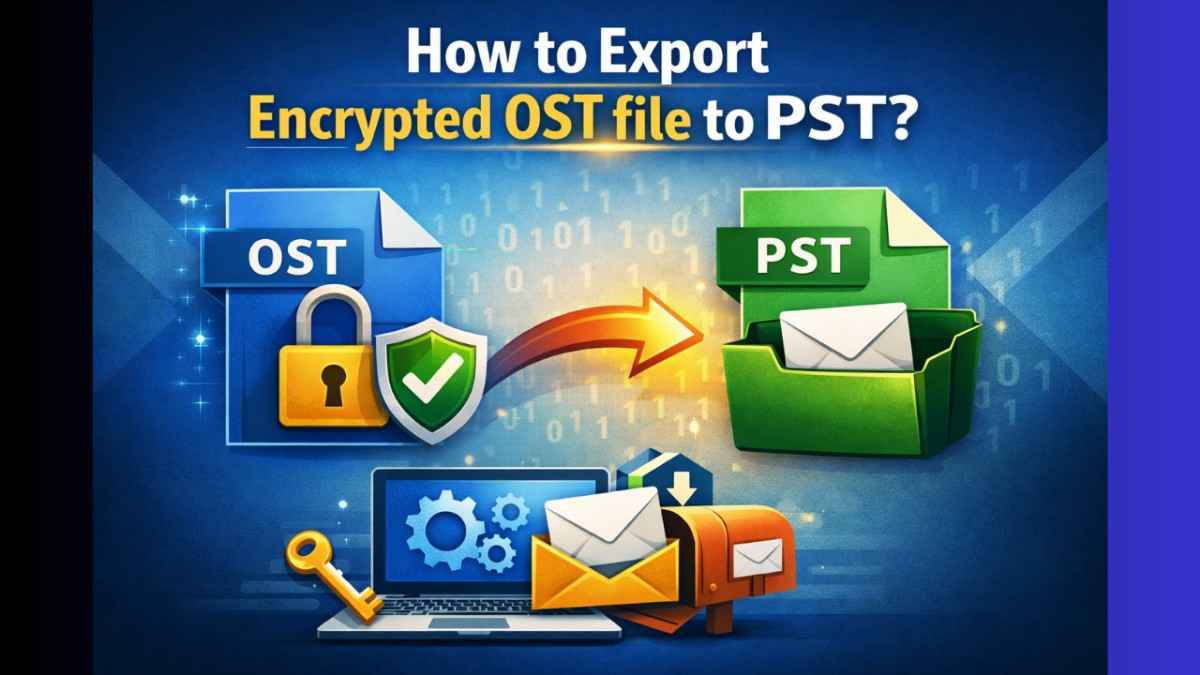
Outlook OST files are called Offline Storage Table. This data file stores an encrypted cache copy of Exchange mailbox folders like email messages, contacts, events, etc. on the local device. It is a highly secured file. The .ost file is associated with a particular profile. This feature allows only a specific profile user with valid credentials to access the mailbox. In addition to this, .ost file is secured with a MAPIEntryID GUID key.
Now the question arises what to do if the password is lost. In such cases, retrieving the data from an encrypted OST is not an easy task. It will compromise the security of the data. At first convert OST to PST format. By doing this, a user can regain access to the .ost mailbox data. Another query that crops up in the mid of the user is that how to convert data files when the Microsoft doesn’t provide any specialized tool. Well, a user may need to change location of OST file in case the system drive is running out of space.
To know more about the subject, stay tuned to our guide titled “How to Export Encrypted OST file to PST?” In this post, we discuss practical approaches to convert an encrypted OST file.
Circumstances that Demand the Conversion of an Encrypted OST
There are many situations when a user needs to perform such conversion. Some of them are listed below:
- In the event of recovering mailbox folders from an inaccessible Outlook data file (.ost).
- In case of recovering mailbox data from a corrupt or orphaned OST.
- In the event of server or email account migration.
- To create mailbox data backup.
- When the user aims to reduce the file size of .ost to minimize the possibility of corruption.
Methods to Export Encrypted OST file to PST?
We have discussed that restoring data from an encrypted OST is a bit challenging. In this part of the post, we will shed light on several methods to perform this task. Follow the below guide:
Method 1: Using the Import/Export Wizard:
Login to the Outlook with the Exchange account credentials that was used to create the OST files. Follow the below instructions:
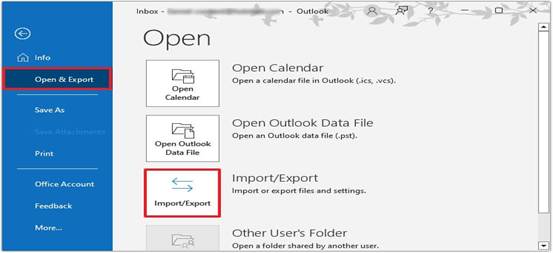
- Press Files >Open & Export. Then hit on Import & Export.
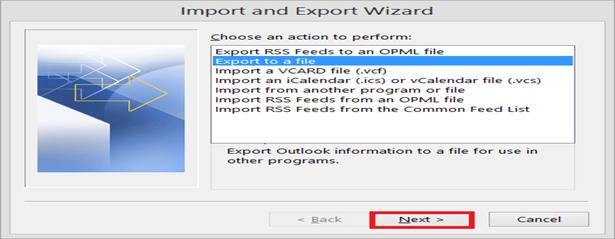
- Press ‘Export to a file’ option, then click Next.
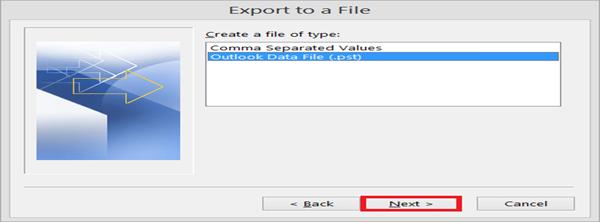
- Choose the Outlook Data File (.pst) option and click Next to continue.
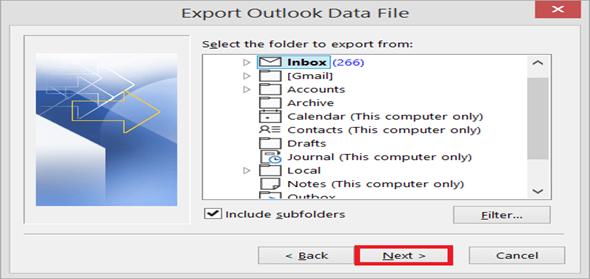
- Select the specific folder and any required subfolders you want to export, then proceed by clicking Next.
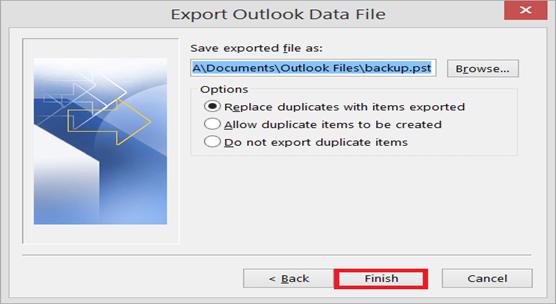
- Now go to the folder where you require to export the new PST files. Select ‘Replace duplicates with items exported’ option. After this click on ‘Finish’.
Method 2: Recreate OST and Sync Mailbox: Follow the below steps:
Step 1: Discover the OST Location: It depends on the Outlook version. If the user is working on Outlook 2010, then he can discover OST by following below steps:
- Browse File.
- Go to Info > Account Settings > Account Settings.
- Now select Microsoft Exchange Server. Then press Change.
- Press More Settings.
- Hit on the Offline Folder File Settings under the Advanced tab.
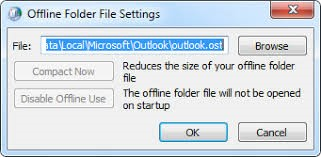
- Copy the OST file path. Browse the same in the File Explorer.
Users working on 2013 and later Outlook versions can perform the below steps to locate OST:
- Open File.
- Go to Info.
- Then browse Account Settings and then choose Account Settings.
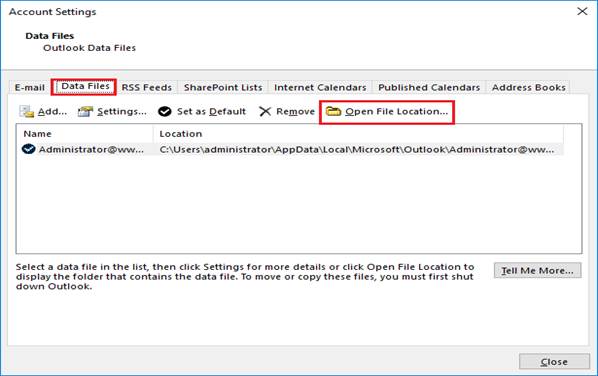
- Navigate to the Data Files tab.
- Now select your email account.
- Then click the Open File Location……button. (This action opens File Explorer and displays the OST file.)
Step 2: Recreate OST File: So, the user has discovered the OST location. The next task is to recreate the Outlook data file (.ost). First create the backup of the current file. After this, a user may change location of OST file. Follow the below steps:
Recreate by Changing the File Extension: It can be done by editing the file extension. Check the below guide:
- Exit Outlook.
- Press ‘View’ in the File Explorer menu.
- Now enable the ‘File Name Extensions’ option.

- Hover the cursor on the OST. Right click on it. Then select ’Rename.’
- Now add .bak extension at the end (OST file name).

- Re-open the Outlook app.
- This action will automatically rebuild OST file.
Recreation by Deleting an Inaccessible Data File: The other way is to change location of OST file. The user can simply cut and paste the OST file to another folder. Before performing this action, exit from Outlook. Otherwise, you will face errors.
Limitations of Above Methods:
- Risk of Data Loss: Above methods involve high degree of risk. Any wrong step will lead to the data loss. Each step must be meticulously executed to avoid data loss.
- Expertise: A degree of technical expertise is required to execute above methods.
- May Disturb Folder Hierarchy: The above methods may disturb the folder structure.
- Time Consumption: These processes may consume loads of productive hours.
Stellar Converter for OST – Recommended Way to Convert an Encrypted OST:
Manual methods are not foolproof. There is a higher degree of risk involved with them. The best and simplest way is to utilize a specialized tool to convert OST to PST. Such software is simple and user friendly. One of such tools is Stellar Converter for OST. It is based on advanced algorithm and is capable of converting even corrupted, orphaned, or encrypted Outlook data files (.ost). In addition, the tool enables users to retrieve complete mailbox information. The converter software supports all Outlook versions.
Benefits of Using Stellar Converter for OST:
- Based on advanced algorithm
- Efficiently convert even an oversized or encrypted OST
- Friendly GUI
- Doesn’t disturb folder structure and hierarchy
- Auto-splits large data files
- Facilitates quick conversion
Conclusion:
OST files are encrypted by default to protect mailbox data and are secured using an MAPIEntryID GUID key. Because of this high level of encryption, transferring or accessing an OST file is often difficult. This article explains the available manual approaches for converting OST to PST; however, these methods come with limitations and potential risks. A more reliable and efficient solution is to use professional OST to PST converter software. Powered by advanced algorithms, such tools can recover data from encrypted or orphaned OST files and even handle large-sized OST files without issues. Additionally, users can save the recovered data in various formats such as PST, PDF, EML, MSG, RTF, and more.
