


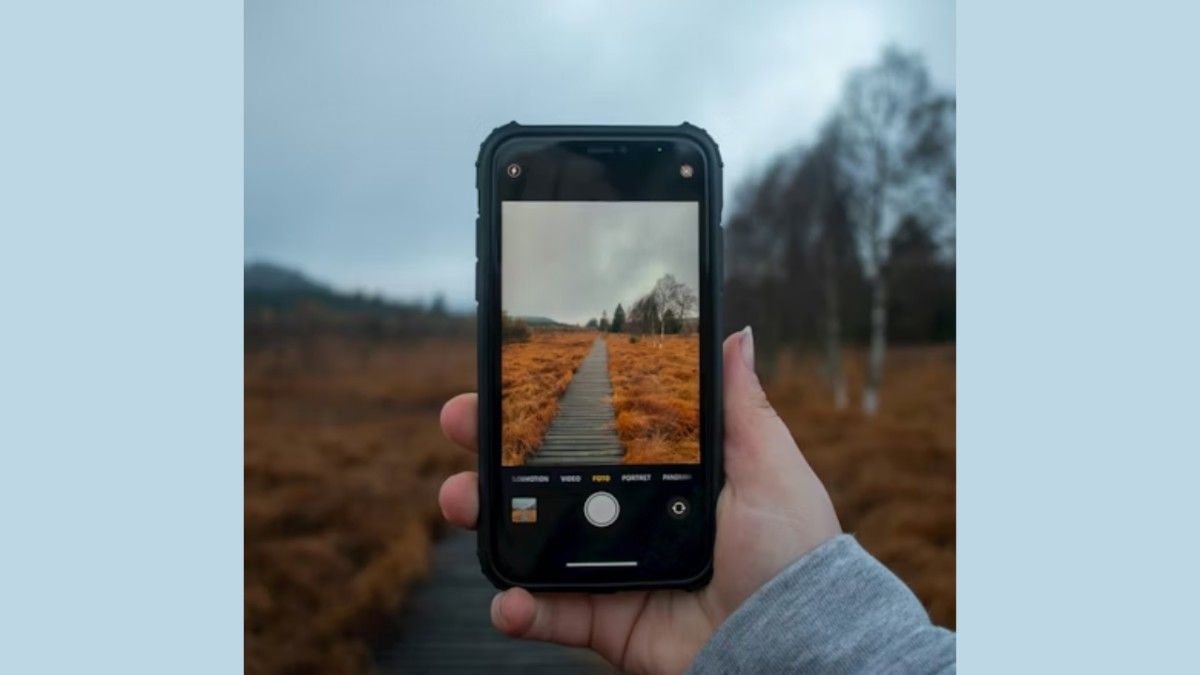
AI has quietly turned the iPhone into a pocket-sized photo studio. In 2026, the most valuable AI edits are not the flashy ones—they’re the ones that save time while keeping your photos realistic: removing distractions, correcting bad light, and improving clarity without over-processing.
Apple’s biggest AI leap in Photos is Clean Up, an Apple Intelligence-powered tool designed to remove unwanted objects and people while intelligently reconstructing the background. Apple confirms Clean Up is integrated into the Photos app and requires supported devices and software.
Meanwhile, the classic Photos editing controls—exposure, brilliance, highlights, shadows, definition, and noise reduction—remain essential for lighting and quality improvements. The expert approach is combining AI’s “fast fixes” with a few manual adjustments that preserve a natural look.
This guide explains exactly how to do all three tasks—object removal, lighting fixes, and quality enhancement—using an iPhone-first workflow.
What “AI Photo Editing” on iPhone Really Means in 2026
Not every “smart” edit is generative AI. On iPhone, AI photo editing typically falls into two categories:
– 1) Generative edits (content-aware rebuilding)
These edits remove or replace content by synthesizing pixels to “fill in” the missing area.
Example: Clean Up removing a person and rebuilding the background.
Clean Up is explicitly described as an Apple Intelligence feature inside Photos that removes distracting objects.
– 2) Computational enhancements (smart adjustments)
These edits improve image quality without inventing new content:
- dynamic range optimization
- noise reduction
- sharpening/definition
- color correction
- portrait depth effects
Expert comment: The best iPhone edits usually combine both: use generative tools sparingly (for distractions), and rely on computational enhancements for realism.
Part 1: Remove Objects on iPhone (The Right Way to Use Clean Up)
If you’ve ever taken a perfect travel photo ruined by a trash bin, a stranger, or a distracting sign, Clean Up is designed for exactly that scenario.
What Clean Up is good at
- small objects (cups, bins, cables, signs)
- background people (photobombers)
- clutter on the ground or walls
- simple textures (sky, grass, sand, water, plain walls)
Where Clean Up struggles
- complex repeating patterns (brick textures, fences)
- detailed edges (hair, lace, thin railings)
- large subjects covering important background
- scenes with heavy shadows or reflections
MacRumors notes that Clean Up works by analyzing the photo and removing selected elements, then reconstructing the background.
Step-by-step: How to remove objects with Clean Up
- Open Photos and select the image
- Tap Edit
- Tap Clean Up (eraser-style tool)
- Tap small objects or circle/brush larger ones
- Let the tool process and refine
- Zoom in and inspect edges
- Repeat in small passes rather than removing everything at once
- Tap Done
Apple’s own requirements page confirms Clean Up is available within Photos and is powered by Apple Intelligence.
Expert technique: remove in layers
Instead of selecting multiple objects at once:
- remove the easiest object first
- check the background reconstruction
- then remove the next item
This reduces artifacts and keeps the reconstruction more believable.
Part 2: Fix Lighting Like a Pro (Without Making It Look Artificial)
Bad lighting is a bigger problem than a bad camera. Most “unflattering” photos are simply:
- underexposed faces
- blown highlights
- mixed indoor lighting
- harsh midday contrast
- night noise
The Photos app gives you precise control—AI helps, but expert results come from the right order of adjustments.
The best order for lighting correction
- Exposure (overall brightness)
- Brilliance (smart contrast and midtones)
- Highlights (recover bright areas)
- Shadows (lift dark areas)
- Brightness (fine tuning)
- Black Point (adds depth and realism)
Expert comment: Most people overuse exposure. Instead, recover highlights first and lift shadows gently. That preserves the natural look and avoids “flat” HDR-style edits.
Fix harsh daylight photos (quick recipe)
- Highlights: down
- Shadows: up slightly
- Black Point: up a little
- Brilliance: up gently
- Warmth: adjust slightly if skin looks cold/gray
Fix indoor yellow/orange photos (quick recipe)
- Warmth: down slightly
- Tint: adjust toward green if skin looks too magenta
- Brilliance: up a little
- Highlights: down to reduce glare
Midpoint: Make Better Edits Faster with Smart Iteration
A fast way to improve your edits is to apply one change, zoom in, and compare before/after. Many creators use an ask AI free workflow to quickly get a suggested adjustment recipe for different conditions (night photos, sunsets, indoor lighting, product shots). The key is to treat AI suggestions as starting points, not rules—your eyes are still the final judge for realism.
Expert comment: The goal is “looks true,” not “looks edited.” If skin tones start to look plastic or shadows lose depth, dial it back.
Part 3: Enhance Quality (Clarity, Sharpness, and Noise) Without Overprocessing
Quality enhancement is about three things:
- detail (sharpness and micro-contrast)
- cleanliness (noise reduction)
- color accuracy (skin tones, whites, and neutrals)
The essential quality sliders (and what they really do)
- Definition: boosts mid-level detail and texture
- Sharpness: increases edge contrast
- Noise Reduction: removes grain but can soften details
- Vignette: draws attention to subject (use lightly)
Expert rule: Increase definition before sharpness. If you sharpen too early, you amplify noise and artifacts.
The “clean but real” enhancement recipe
For most photos:
- Definition: +10 to +25
- Sharpness: +5 to +15
- Noise Reduction: +5 to +20 (more for night shots)
- Black Point: +3 to +10 (adds depth)
Then zoom in and check:
- hair and fabric texture
- sky gradients
- skin texture
If skin looks waxy, reduce noise reduction.
Night photo enhancement (avoid the “oil painting” look)
- Exposure: increase only slightly
- Highlights: down
- Shadows: up gently
- Noise Reduction: moderate
- Definition: moderate
- Sharpness: low-to-moderate
Expert comment: Night photos look best when you keep some grain. Completely removing noise often removes realism.
The Hidden Secret: Quality Depends on the Source (Before Editing)
AI editing works best when the original photo is strong. Two small habits dramatically increase edit quality:
1) Use the right lens and avoid digital zoom
Digital zoom reduces detail and increases noise. If possible:
- move closer physically
- use optical zoom lenses on Pro models
- shoot in good light
Tap to focus and lock exposure
Tap the subject’s face, then adjust brightness using the on-screen slider. Better exposure = easier editing later.
Troubleshooting: Why Your AI Edits Look Fake (And How to Fix Them)
Problem 1: Clean Up leaves blur or weird textures
Fix:
- undo and select a smaller area
- remove in multiple passes
- avoid removing very large subjects
- crop slightly after cleanup to hide edge artifacts
Apple’s support documentation and multiple guides note that results vary depending on the scene complexity.
Problem 2: Skin looks too smooth or “plastic”
Fix:
- lower noise reduction
- reduce brilliance
- increase black point slightly
- avoid heavy sharpening
Problem 3: Colors look unnatural
Fix:
- reduce saturation
- adjust warmth/tint subtly
- check the photo under neutral brightness (not full dark mode at night)
Best Practices: A Professional iPhone Editing Workflow (30 Seconds)
The quick workflow that works 90% of the time
- Crop/straighten
- Highlights down
- Shadows up slightly
- Brilliance up gently
- Definition up
- Noise reduction only if needed
- Clean Up last (if required)
Expert comment: Always fix lighting before removing objects. If you run Clean Up first and then drastically change contrast, artifacts become more visible.
Conclusion: iPhone AI Edits Are Powerful When You Stay Subtle
AI photo editing on iPhone is now genuinely capable of professional-looking results—especially for:
- removing distractions with Clean Up
- correcting exposure and harsh lighting
- enhancing clarity and reducing noise
But the best results come from restraint. Clean Up is most convincing when used on small-to-medium distractions and paired with natural lighting adjustments. Apple’s documentation confirms Clean Up is an Apple Intelligence feature, and guides show it’s designed for quick, intuitive removal in Photos.
If you follow the workflow in this article—light first, quality second, Clean Up last—you’ll get photos that look polished but still real.
